How to Reuse 3D Components Across an Apparel Season with CLO-SET
A guide for design, pattern, and product development teams on reusing block patterns, fabrics, trims, and avatars across a season in CLO-SET, with Company Library Workrooms, linked parent and child contents, and search.
Key Takeaways
- Manage common assets in Company Library: CLO-SET's Company Library helps teams store and share Block Patterns, Fabrics, Trims, Avatars, and other assets used across Styles and seasons.
- Organize Workrooms by component type: Create Workrooms for Block Patterns, Avatars, Fabrics, and Trims, then use Child-Workrooms for more detailed organization.
- Manage library access separately: Company Library has its own permission structure, separate from other Workrooms within the Company.
- Trace component reuse with Linked Contents: Create Parent–Child relationships between original Content and newly developed Styles to track where reused components or designs originated.
- Find components through Search: Search by Content Name, Creator, or Content ID, and include Child-Workrooms when looking for reusable assets.
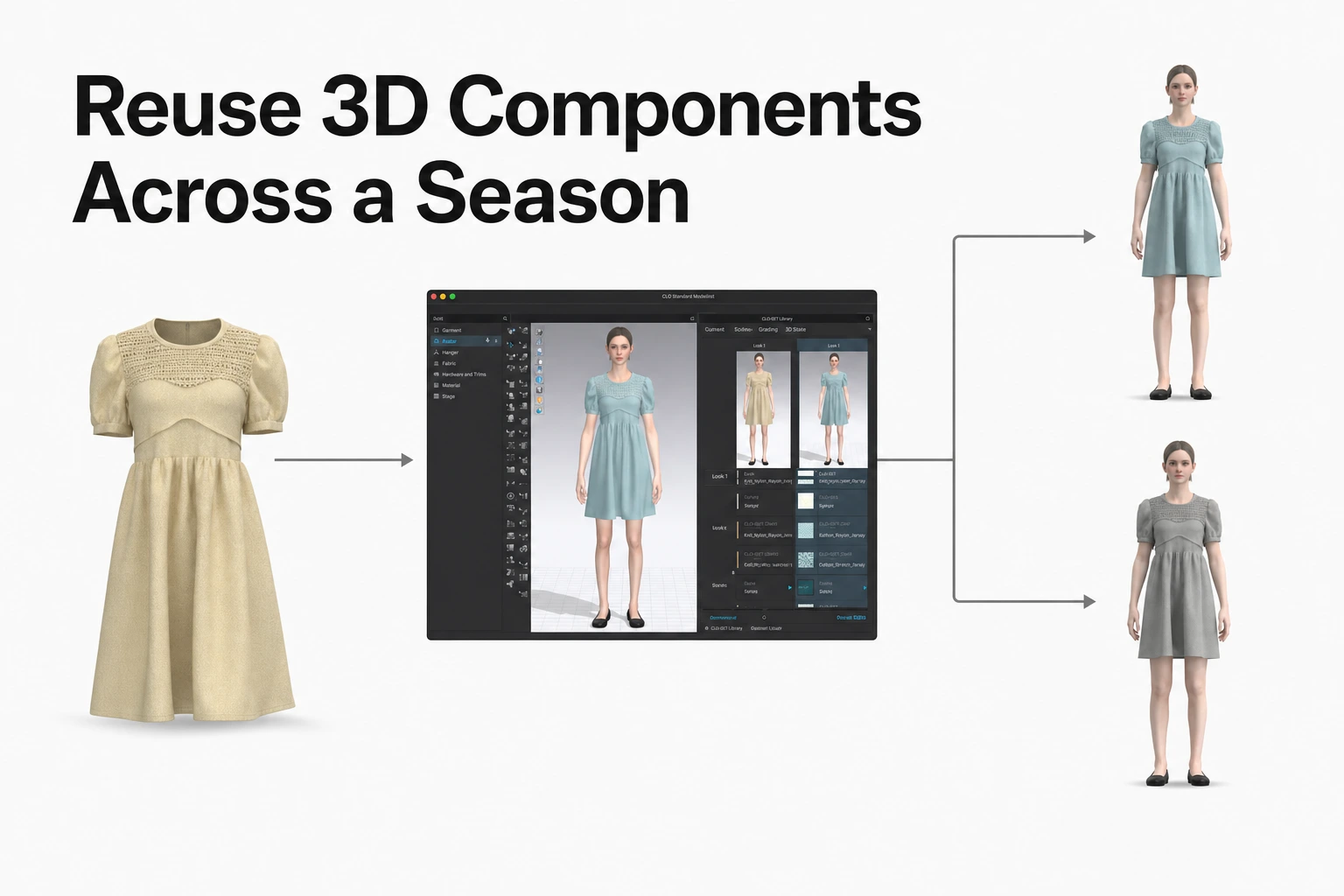
Apparel teams reuse common components such as Block Patterns, Fabrics, Trims, and Avatars when developing new Styles throughout a season.
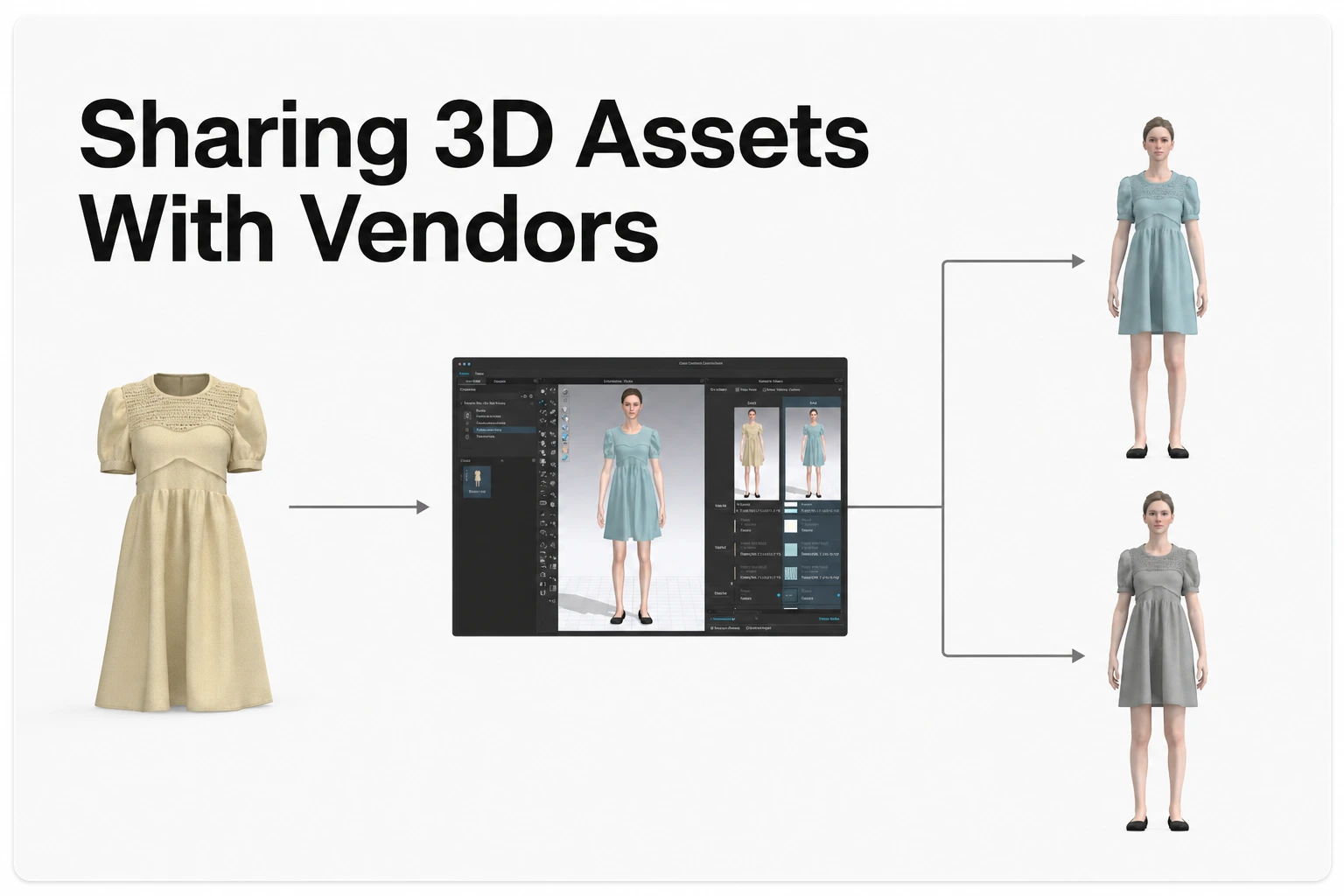
In CLO-SET, teams can store these shared digital assets in Company Library and organize them using Workrooms and Child-Workrooms.
Designers can access library files through CLO, use them as a starting point for new Styles, and establish Parent–Child relationships through Linked Contents when uploading new Content.
Teams can then use Search and Linked Contents to locate reusable assets, identify original files, and reference earlier designs during subsequent product-development work.
Why Component Reuse Becomes Difficult Across a Season
Styles within an apparel collection often share common components even when their final designs differ.
For example, a collection of 40 Styles may be developed using six basic Block Patterns, three core Fabrics, and a shared Trim package.
When those components are scattered across personal folders and different storage locations, designers may end up working from different copies of the same source file.
This can result in multiple versions of a Block Pattern or Fabric being used across the collection, making it more difficult to determine which file should serve as the reference for new Styles.
Effective component reuse begins with making common assets easy to find and access.
It also helps when teams can identify which components are maintained as reusable references and which original files were used to develop subsequent Styles.
CLO-SET supports shared component management through Company Library and origin tracking through Linked Contents.
Together, these capabilities help design, pattern, and product-development teams organize digital assets and reuse them across multiple Styles and seasons.
Set Up the Company Library
Company Library is a cloud-based space in CLO-SET for storing and managing commonly used digital assets.
CLO-SET's official documentation describes support for assets such as:
- Brand Logos
- Virtual Fabrics
- Trims
- Block Patterns
- Avatars and Dummies
- Other shared digital assets
CLO-SET provides a Company Library at the Company level, and Company Admins can enable or disable the feature (CLO-SET Company Library guide).
Teams can use this space to manage components that are reused across product-development teams and seasons.
Create Workrooms by Component Type
Within Company Library, teams can create Workrooms and organize them further using Child-Workrooms.
CLO-SET's component library guidance recommends categories such as Block Pattern, Avatar, Fabric, and Trim.
One possible organization is:
| Workroom | Example Child-Workrooms |
|---|---|
| Block Pattern | Tops, Bottoms, Dresses, Outerwear |
| Fabric | Wovens, Knits, Denim |
| Trim | Buttons, Zippers, Labels |
| Avatar | Size Ranges, Fit Models |
This structure is an example. Teams can organize their library according to their product categories and asset-management needs.
Users can use the + New option within Company Library to create Workrooms or upload Content.
Assets can also be uploaded directly to Company Library when a separate Workroom is unnecessary.
Define Which Components Belong in the Library
Teams should establish a consistent approach to deciding which assets will serve as reusable references.
For example, a Block Pattern undergoing fit development may remain in the relevant seasonal Workroom until the team decides it is ready for broader reuse.
Once the Pattern team has established a reusable reference, the file can be organized in Company Library.
The same approach can be applied to Fabrics, Trims, and other shared components.
This helps designers and pattern makers understand which assets to use when starting a new Style.
Decide Who Can Access and Manage Components
Company Library uses permissions that are separate from those of other Workrooms in the Company.
According to CLO-SET's official documentation, Company Admins and Collaborators, along with Brand Admins and Brand Collaborators under the relevant Company, can access Company Library.
Other users can be granted Company Library Editor or Viewer access as needed (CLO-SET Company Library guide.)
Company Library Permissions
| Role | Download | Upload | Delete |
|---|---|---|---|
| Company or Brand Admin / Collaborator | Yes | Yes | Yes |
| Company Library Editor | Yes | Yes | No |
| Company Library Viewer | No | No | No |
This permission structure allows teams to distinguish between users who manage component files and those who primarily need to inspect the library.
Assign Owners for Different Component Types
Organizations can designate owners for different asset categories.
For example:
- Block Patterns: Pattern Lead or Technical Design Team
- Fabrics: Materials Team
- Trims: Trim Development or Sourcing Team
- Avatars: 3D Design Team
Designers and pattern makers who need to download source files to develop new Styles should receive the relevant download permissions.
Company Library Editor access may be appropriate for users who need to download files but do not already have Company or Brand Admin or Collaborator permissions.
Viewer access can be used for participants who only need to inspect shared assets.
Because Editors can upload and download assets, teams can establish an internal process for adding new components or updating existing reference files.
For example, the Pattern Lead may be responsible for reviewing new Block Patterns before they are added to the team's collection of reusable assets.
This approach helps teams maintain consistent component references while supporting access for multiple designers.
Start New Styles from Library Files and Link Them
Linked Contents allows teams to establish a Parent–Child relationship between existing Content and newly created Content.
This can be useful when developing a new Style from a Block Pattern or carrying an existing design into a subsequent season (CLO-SET Linked Contents guide).
For example, when a designer creates a new jacket using an existing Block Pattern, Linked Contents can record the relationship between the original Block Pattern Content and the new jacket Content.
Create Linked Contents from CLO
Linked Contents can be configured when a designer uses a file from CLO-SET Library in CLO and uploads the resulting Style as new Content.
Step 1. Access CLO-SET Library from CLO
Open CLO and access the relevant files through CLO-SET Library.
Select the file that will serve as the starting point for the new Style.
Step 2. Open the Original File First
Download or open the selected Block Pattern or existing Style file from CLO-SET Library.
The original file opened first in CLO determines the Original Content used for the Parent–Child relationship.
If the team wants to associate the new Style with a particular Block Pattern, start the work from that Block Pattern file.
Step 3. Develop the New Style
Use the original file as the basis for subsequent design work.
For example, the designer may:
- Create new Colorways
- Change Fabrics or Trims
- Adjust the Pattern or garment details
- Develop a new Style using an existing Block Pattern
Step 4. Upload as New Content
After completing the design work, use CLO's Upload to CLO-SET function to upload the result as new Content.
Enable the Linked Content option and choose the appropriate Group and Workroom.
Once uploaded, the original file is recorded as the Parent Content, while the newly uploaded file becomes the Child Content.
Understand the Linking Conditions
CLO-SET's documentation identifies several important conditions.
Parent and Child Contents Must Be in the Same Group
The original and newly created Content must belong to the same CLO-SET Group.
The First Original File Determines the Parent
When multiple files from CLO-SET Library are used to develop one new Content item, the first original file opened in CLO determines the Parent Content.
For example, if a designer begins with a Block Pattern and later adds Fabric or Trim files, the Block Pattern is the original file used for the Linked Contents relationship.
This allows teams to select the source component they want to trace when developing a new Style.
Linking Is Configured During New Content Creation
Linked Contents is established when uploading new Content.
The feature does not support creating a new Parent–Child relationship when uploading another Version of an existing Content item.
Subsequent revisions can be managed through Content Versions within the new Style.
Review Parent–Child Relationships
Once Linked Contents has been established, users can review the related Parent or Child Contents.
On the current Content Page, Linked Contents information can be found near the bottom of the Overview tab.
For example, a technical designer reviewing a new Style can identify the original Block Pattern used to develop it.
Likewise, a team reviewing a Parent Content item can examine the Child Contents linked to that original asset.
This helps teams trace the relationship between reusable source files and the Styles developed from them.
When a source Block Pattern is revised, teams can review its linked Styles and decide which designs require corresponding changes.
Carry Styles from One Season to the Next
Linked Contents can also support Style reuse between seasons.
For example, a brand may carry a popular Style into a new season while updating its Fabric, Colorway, or other design details.
Start from the Previous Season's Style
Designers can use the earlier Style file as the basis for developing a new seasonal version.
A practical sequence is:
- Open the previous season's Style file through CLO-SET Library in CLO.
- Modify its Fabric, Colorways, or other design details.
- Upload the result as new Content for the subsequent season.
- Use Linked Content during upload to establish the relationship with the original Style.
This allows the new season's Style to be managed as a separate Content item while preserving a link to its original source.
Review the Origin of a Reused Style
Linked Contents helps merchandisers and technical designers identify the original Style associated with a newer seasonal design.
For example, a team reviewing a new jacket can navigate to the previous season's Parent Content and examine its related Content Versions and Comments.
This provides useful context about earlier design decisions and development feedback.
By linking new Content with its original source, teams can trace component and Style reuse across seasons.
Find Reusable Components with Search
A component library becomes more useful when teams can quickly locate the assets they need.
CLO-SET's Search functionality helps users find Content within their permitted access scope.
Search by Relevant Content Information
Users can search using information such as:
- Content Name
- Creator
- Content ID
They can also use relevant filters, including Content Type, Space, Workflow, and Category, to narrow search results.
The Group-level Search tab allows users to search across Content they are permitted to access.
Include Child-Workrooms in Search Results
When searching within a Workroom, users can choose the appropriate scope through the Search For menu.
The available options include:
| Search Scope | Description |
|---|---|
| Contents of Current Room | Search Content within the current Workroom |
| Contents Including Child Rooms | Search Content in the current Workroom and its Child-Workrooms |
| Workrooms | Search Child-Workrooms within the current Workroom |
For example, if the Block Pattern Workroom in Company Library contains Child-Workrooms for Tops, Bottoms, and Dresses, users can select Contents Including Child Rooms to search across the related files.
This can help designers find reusable components without opening each Child-Workroom separately (CLO-SET Search Contents guide.)
Use Consistent Naming Conventions
Consistent file names make it easier to identify and reuse components.
For example:
Block_Tee_Regular_v2Block_Jacket_Classic_v1Fabric_Jersey_180gsmTrim_Button_15mm
These names communicate the component category and relevant characteristics.
CLO-SET currently does not support placeholders in Search, so teams may find it helpful to use names and codes that are easy to remember and enter consistently.
Review Reused Components in Web Tech Pack
When Fabrics and Trims are reused across multiple Styles, maintaining consistent technical product information is also important.
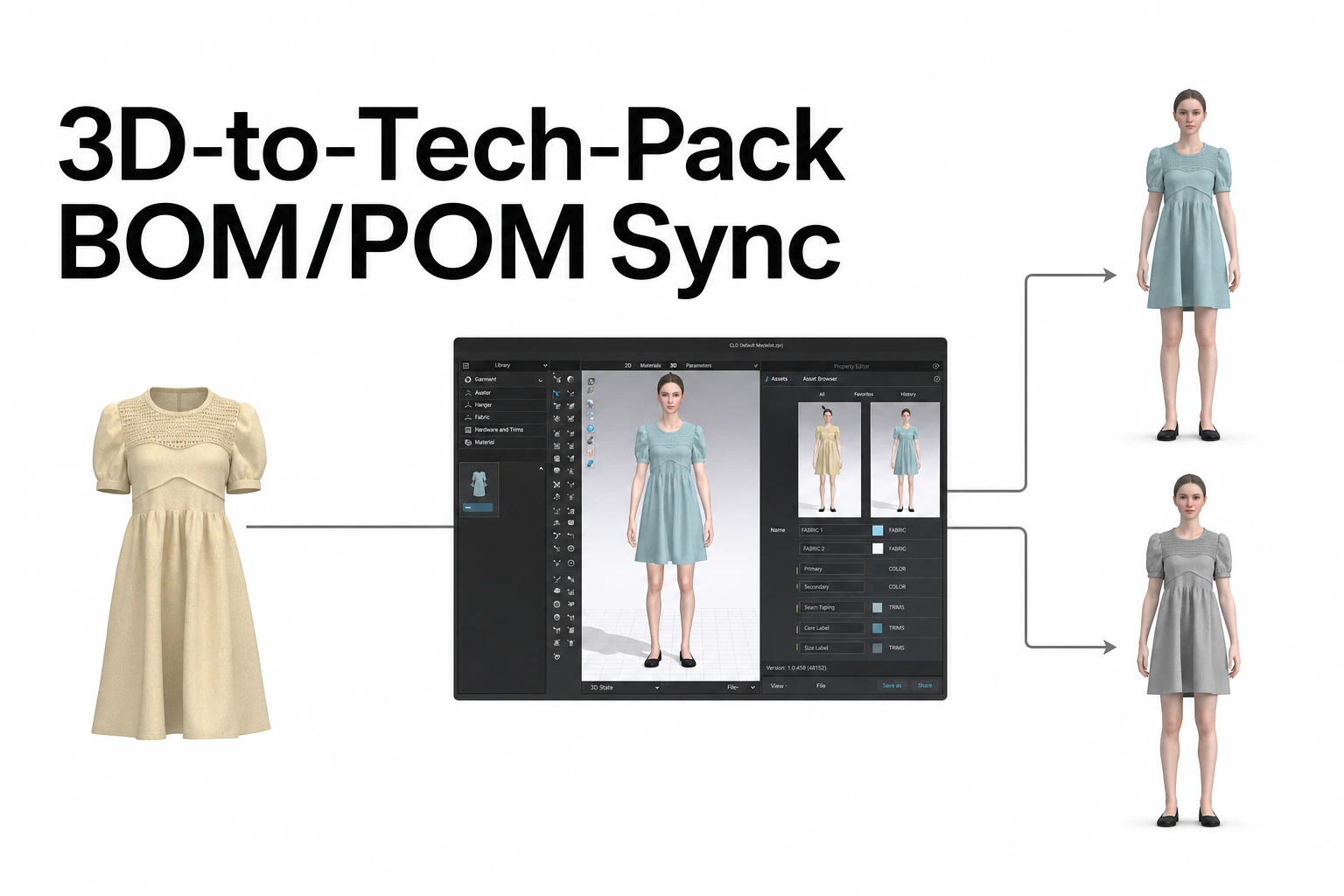
CLO-SET's Web Tech Pack supports managing BOM, POM, and related technical information using supported garment data and user-entered product information.
Review Materials and Trims in BOM
For compatible ZPRJ and ZPAC files, supported material information can be used in the Web Tech Pack BOM.
BOM information can be managed in relation to Content Versions, Colorways, and Grades.
For example, when several Styles use the same Fabric, teams can review the material information recorded in each Style's BOM and compare the relevant specifications.
Add Materials and Trims Stored in CLO-SET
The Web Tech Pack BOM includes an Add Content Row function that allows users to add supported material or trim Content stored in CLO-SET.
For example, a team may use eligible Fabric or Trim Content from the library in a Style's BOM.
The selected Content must meet the supported file-type and Content Type requirements, and users must have the relevant access permissions.
This enables teams to use shared material and trim assets as references when managing technical product information (CLO-SET Web Tech Pack BOM guide.)
Manage Material Information Across Content Versions
When a Style's Content Version is updated, users can choose whether to update the related Web Tech Pack information.
When a separately stored material or Trim Content receives a new Version, teams can review the related BOM entries and update the relevant information as needed.
For example, if a commonly used button specification changes, the responsible team can identify the Styles using that component and review whether the revised specification should be applied to their BOMs.
This approach helps maintain consistency between reusable component references and the technical product information of individual Styles.
Review Related Costs in Cost Estimation
Cost Estimation can incorporate Fabric and Trim costs from the BOM along with additional user-entered expenses such as labor and transportation.
Teams can review material information and relevant costs across multiple Styles when comparing the results of component reuse.
Together, Company Library and Web Tech Pack help connect shared digital assets with the technical information used during apparel product development.
A Reuse Checklist for the Season
Use the following checklist when organizing and reusing common assets across Styles and seasons.
- Organize Company Library: Create Workrooms for Block Patterns, Fabrics, Trims, and Avatars, with Child-Workrooms where useful.
- Assign owners and permissions: Identify the owners of each component category and grant the appropriate Company Library access for downloading and uploading assets.
- Establish naming conventions: Use consistent Content Names and component codes that are easy to search.
- Start from the original library file: Open the source component first in CLO when beginning a new Style.
- Configure Linked Contents during upload: Create the Parent–Child relationship when uploading the new Style as Content.
- Review reuse history and product information: Examine linked Styles and relevant BOM information when managing changes to shared components.
These practices help designers and product-development teams locate reusable assets, understand their origins, and incorporate established components into new seasonal Styles.
Frequently Asked Questions
What can we store in the Company Library?
Company Library can store shared digital assets such as Brand Logos, Virtual Fabrics, Trims, Block Patterns, Avatars, Dummies, and other commonly used components.
Who can access the Company Library?
Company Admins and Collaborators, along with Brand Admins and Brand Collaborators under the relevant Company, can access Company Library.
Other users may be given Company Library Editor or Viewer access.
Company Library permissions are managed separately from permissions for other Company Workrooms.
If we update a block, do the styles built from it update too?
Linked Contents records the Parent–Child relationship between the original Block Pattern and the Styles developed from it.
Teams can use these links to identify the affected Styles, review the updated Block Pattern, and apply the relevant changes to individual Styles as needed.
Can we link a new version of a style to a parent?
Linked Contents is configured when creating new Content.
Creating a new Parent–Child link during a Content Version upload is not supported.
To establish the relationship with the original Content, configure Linked Content when the new Style is first uploaded as a separate Content item.
Source Note
This article is based on official CLO-SET Help Center documentation covering Company Library, Component Library, Linked Contents, Search, and Web Tech Pack, reviewed on October 30, 2026.
The review focuses on storing and organizing shared 3D assets, Company Library permissions, component reuse through CLO, Parent–Child linking conditions, seasonal Style reuse, Search functionality, and material information management through BOM.
The suggested Workroom structures, asset management processes, naming conventions, and reuse checklist are practical recommendations for apparel product-development teams.
Official product and reference sources:
- CLO-SET: Company Library
- CLO-SET: Component Library — Block Pattern, Fabric, Trim
- CLO-SET: Linked Contents — Parent-Child Contents
- CLO-SET: Search Contents
- CLO-SET: Web Tech Pack — BOM
- CLO-SET: Intro: Web Tech Pack